
What to buy, what to skip, and how to set it up so the whole family is happy on Christmas morning
If your teenager has been dropping hints about a gaming PC, you’re not alone. It’s one of the biggest gifts a lot of families will buy this year, and it’s easy to feel lost in a sea of graphics card model numbers and flashing lights. The good news: you don’t need to become a hardware expert. You need a clear idea of what your teen actually plays, a budget, and a plan for setting things up on day one.
Here’s the parent-friendly version, from a Texas shop that builds these things every day.
START WITH WHAT THEY PLAY (AND WHAT IT’S RATED)
Before you talk parts, ask your teen for a list of the games they want to play, then look each one up on ESRB.org. The ESRB rating tells you the age the content is suited for:
| Rating | Suitable For |
|---|---|
| E (Everyone) | All ages |
| E10+ | Ages 10 and up |
| T (Teen) | Ages 13 and up |
| M (Mature 17+) | Ages 17 and up |
| AO (Adults Only 18+) | Adults 18 and up only |
Source: ESRB ratings guide.
Pay attention to the interactive elements too. These don’t change the rating, but they matter to parents. “In-Game Purchases” means the game sells extras for real money. “In-Game Purchases (Includes Random Items)” means loot boxes, where you don’t know what you’re getting until you pay. “Users Interact” means your teen may be exposed to unfiltered content from other players, including chat.
The game list also tells you how much PC you need. A teen who mostly plays competitive shooters at high frame rates needs something different from one who wants to max out the newest big-budget releases at 1440p. Our 1080p vs 1440p vs 4K guide helps match the PC to the monitor.
HOW MUCH PC DOES A TEEN REALLY NEED?
Honestly? Usually less than the top of the line, and more than the cheapest box on the shelf. A few rules of thumb:
- The graphics card matters most for games. Spend there before you spend on fancy lighting or an oversized case.
- Leave room to grow. A solid power supply and a modern motherboard make it easier to add storage or a better GPU later, which is a great birthday or graduation gift down the road.
- Storage fills up fast. Modern games are big. Our RAM and storage guide covers how much makes sense today.
- Don’t forget the monitor. A fast PC on a slow, old TV leaves performance on the table.
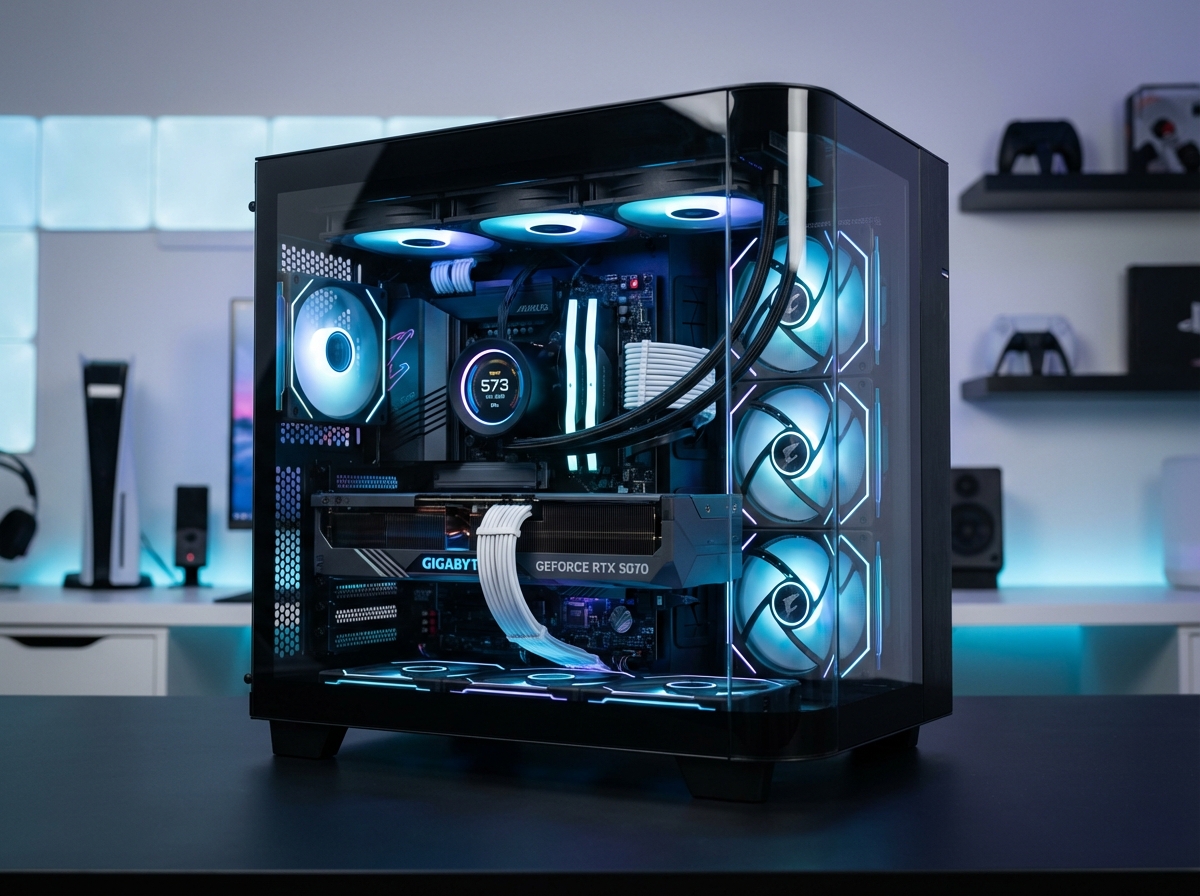
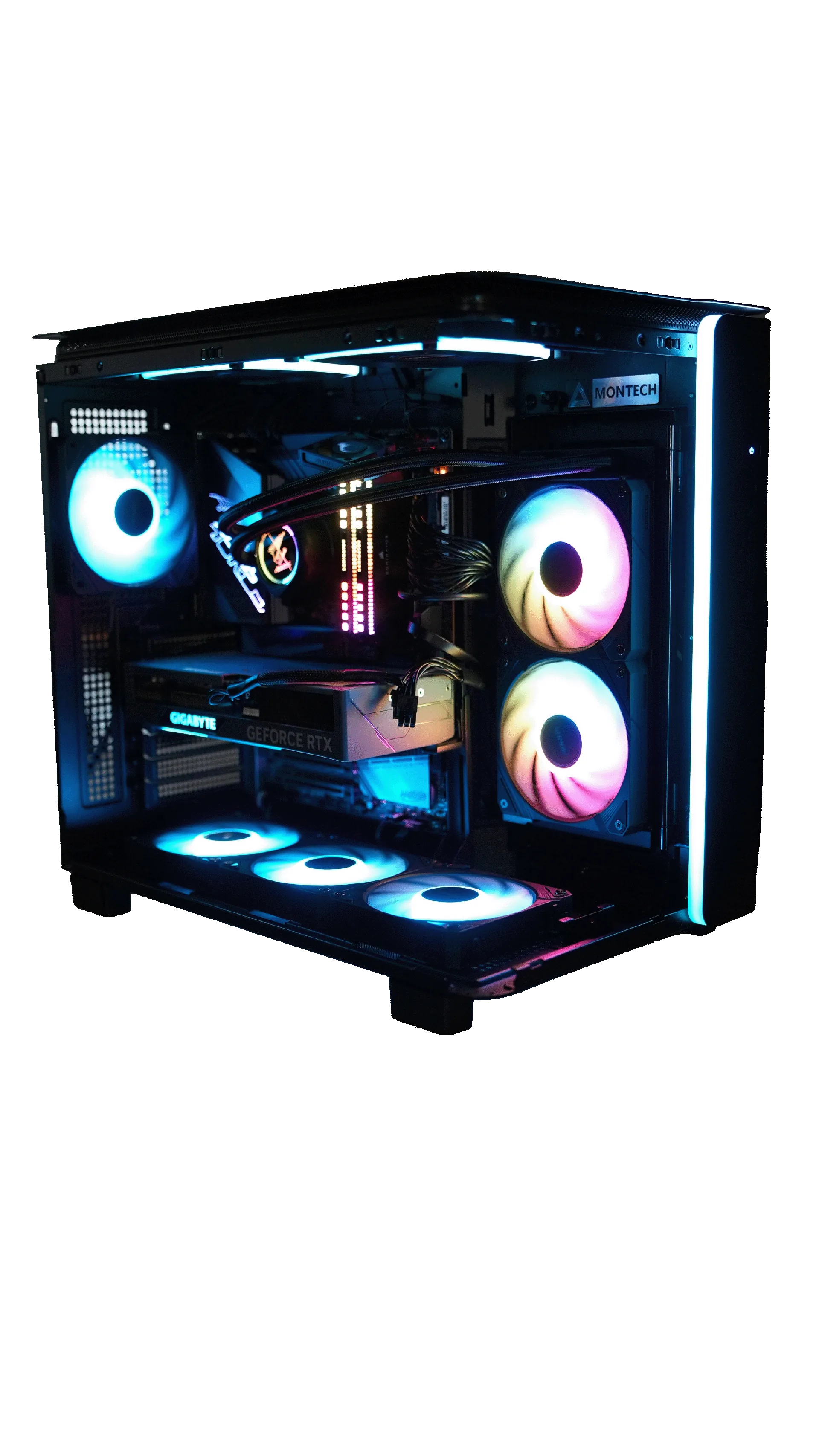
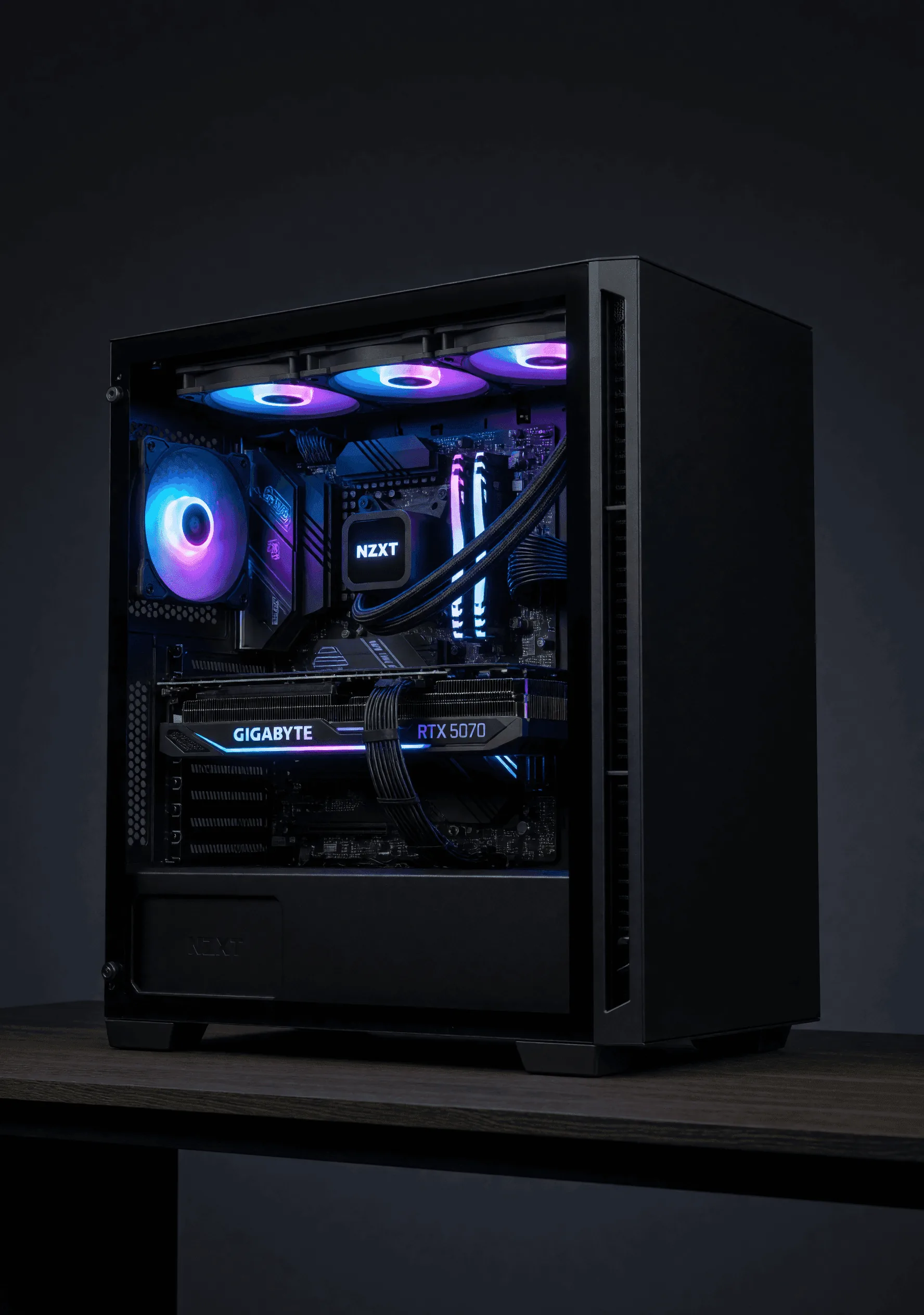
For reference, our Outlaw ($5,099) is an RTX 5070-class gaming rig and the Wrangler ($6,299) steps up to an RTX 5070 Ti. Those are premium, hand-built machines, and they’re more than a lot of families need for a first PC. If you want to target a specific budget, the Custom Builder shows the running total as you pick parts, or you can tell us what your teen plays and we’ll give you an honest recommendation.
BUY FROM SOMEONE WHO WILL ANSWER THE PHONE
A first PC comes with first-PC questions: why won’t the game launch, why is the fan loud, why is there no picture. That’s why support matters more than a few dollars of difference in price. Ask any seller about the warranty, testing and who you call when something goes wrong. Every Lone Star build is hand-built, stress-tested and benchmarked, and comes with a 1-year warranty plus the full manufacturer warranties on the parts.
SET UP PARENTAL CONTROLS BEFORE YOU WRAP IT
The best time to set rules is before the first game is installed. Here are the three layers worth setting up.
1. Windows: Microsoft Family Safety
Windows 11 Home needs an internet connection and a Microsoft account to finish setup on first use, according to Microsoft. Give your teen their own account and add it to your Microsoft Family Safety group. From the Family Safety app or account.microsoft.com/family, you can pick a day and set the allowed time ranges and total hours for the Windows PC, then copy the schedule to other days. Microsoft notes that limits apply only to devices connected to your family group, so make sure the new PC is signed in with your teen’s account, not a separate local one.
2. Steam: Steam Families
Most PC gaming runs through Steam, and Valve’s Steam Families feature lets up to six people share a library, with each member set as an Adult or a Child. For child accounts, adults can set daily playtime limits, see playtime reports, approve or deny requests for more time, and block specific games or limit access to the Steam Store, chat and community features. Adults can also approve or deny game purchases, so there’s no reason to keep a card on your teen’s account.
3. The games themselves
The ESRB points out that some games, Fortnite among them, offer their own child accounts or in-game restrictions on purchases and chat. Check the settings in the handful of games your teen plays most. The ESRB also directs parents to ParentalTools.org for step-by-step instructions on each platform.
A NOTE ON SPENDING
The ESRB stresses that in-game purchases are never mandatory, but they’re everywhere. Decide on a monthly limit together before the first purchase prompt shows up, and never save a credit card to your teen’s accounts. Use purchase approvals instead.
MAKE HOUSE RULES TOGETHER
The ESRB recommends a family meeting to agree on house rules that everyone can follow, parents included. A few that work well:
- Where the PC lives. A shared space is easier to supervise than a closed bedroom.
- School nights vs. weekends and holidays, written down so nobody argues later.
- Who they can play and chat with online, and what to do if someone makes them uncomfortable.
- A spending budget, and what happens if it’s exceeded.
CHRISTMAS MORNING CHECKLIST
A few things to do before the bow goes on, so the big moment isn’t spent watching update bars:
- Unbox it, remove any packing foam inside the case, and plug the monitor into the graphics card, not the motherboard.
- Finish Windows setup with your teen’s Microsoft account and add it to your family group.
- Run Windows Update and the graphics driver update.
- Install Steam, set up Steam Families, and pre-download one or two of their favorite games.
Our Windows 11 gaming settings checklist covers the rest.
BOTTOM LINE
Start with the games your teen plays and their ratings, buy enough PC for those games with room to grow, and buy from someone who backs it up. Then spend 30 minutes on Family Safety and Steam Families before you wrap it. You’ll give them the gaming PC they’ve been hinting about, with guardrails you’re comfortable with. And if you’re in Dallas, Fort Worth, Rockwall or anywhere in between and want help picking the right build, we’re glad to talk it through.
NOT SURE WHERE TO START?
Tell us what your teen plays and we’ll help you pick the right build. Contact us for current build times. TPM 2.0 and Secure Boot come standard on every Lone Star build.
TALK TO US SEE OUR BUILDSSOURCES
- ESRB: Ratings guide
- ESRB: What parents need to know about loot boxes and other in-game purchases
- Microsoft Support: Set screen time limits across devices
- Microsoft Learn: Windows 11 requirements
- PCWorld: Steam Family feature offers better sharing and parental controls
- NZXT: New gaming PC setup checklist