
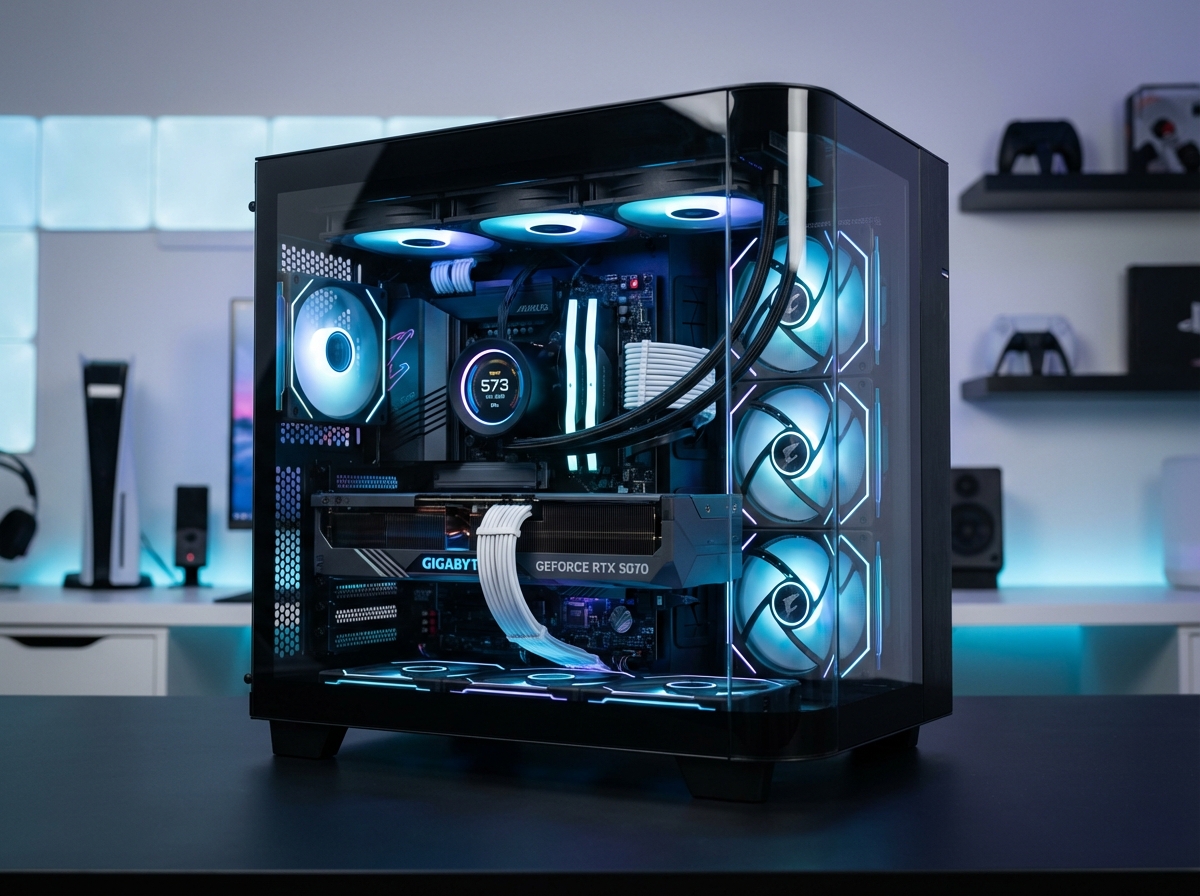
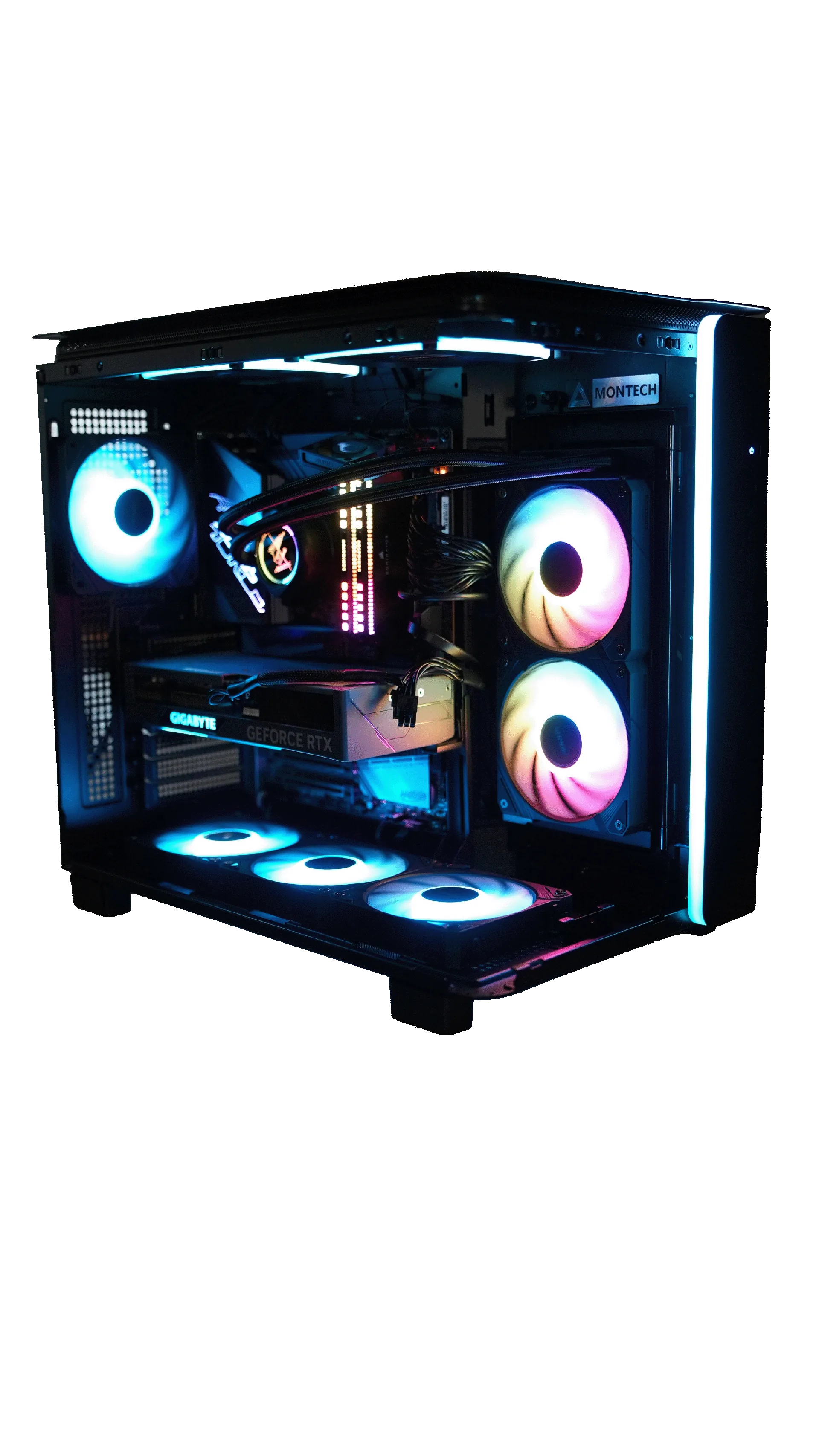
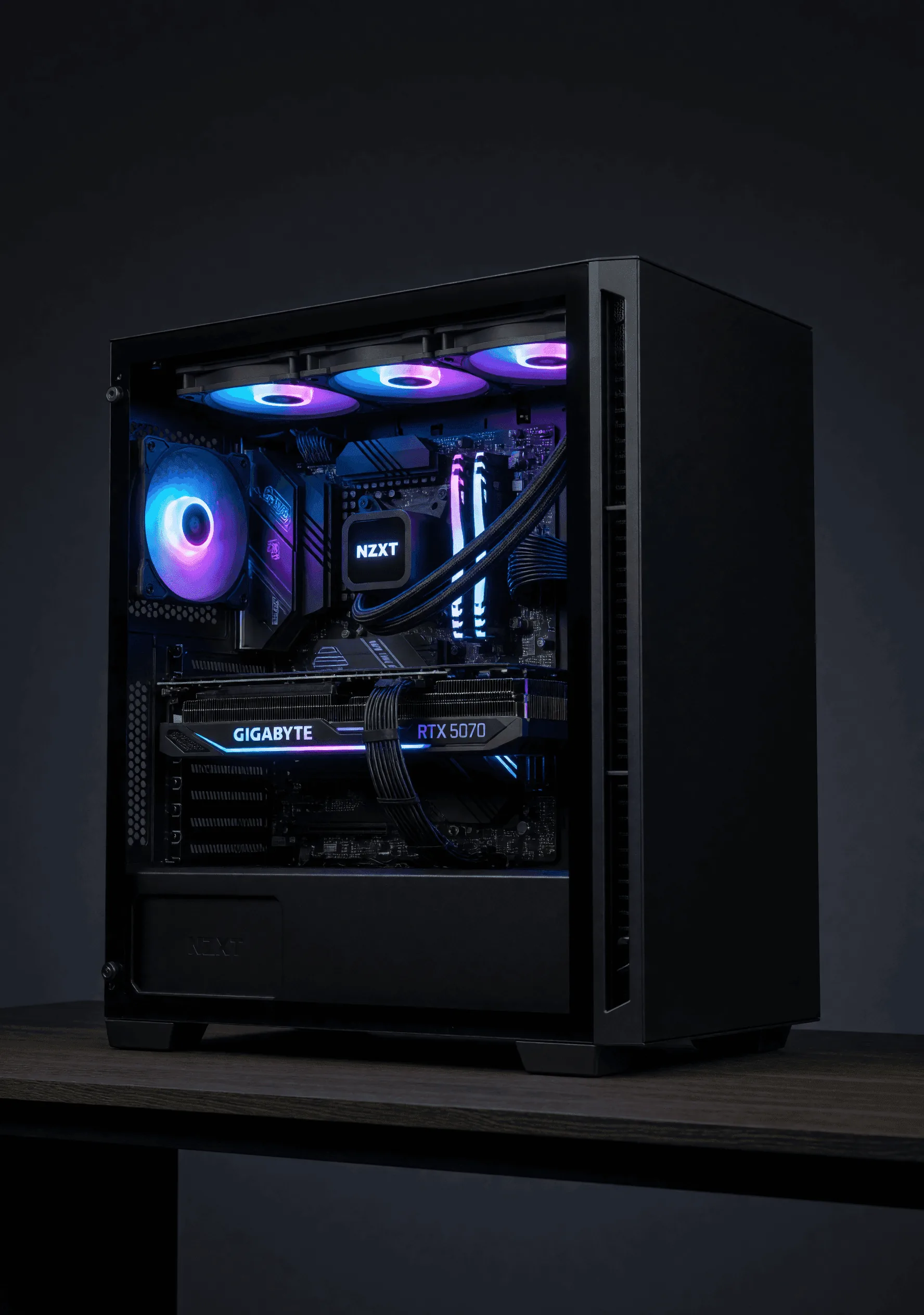
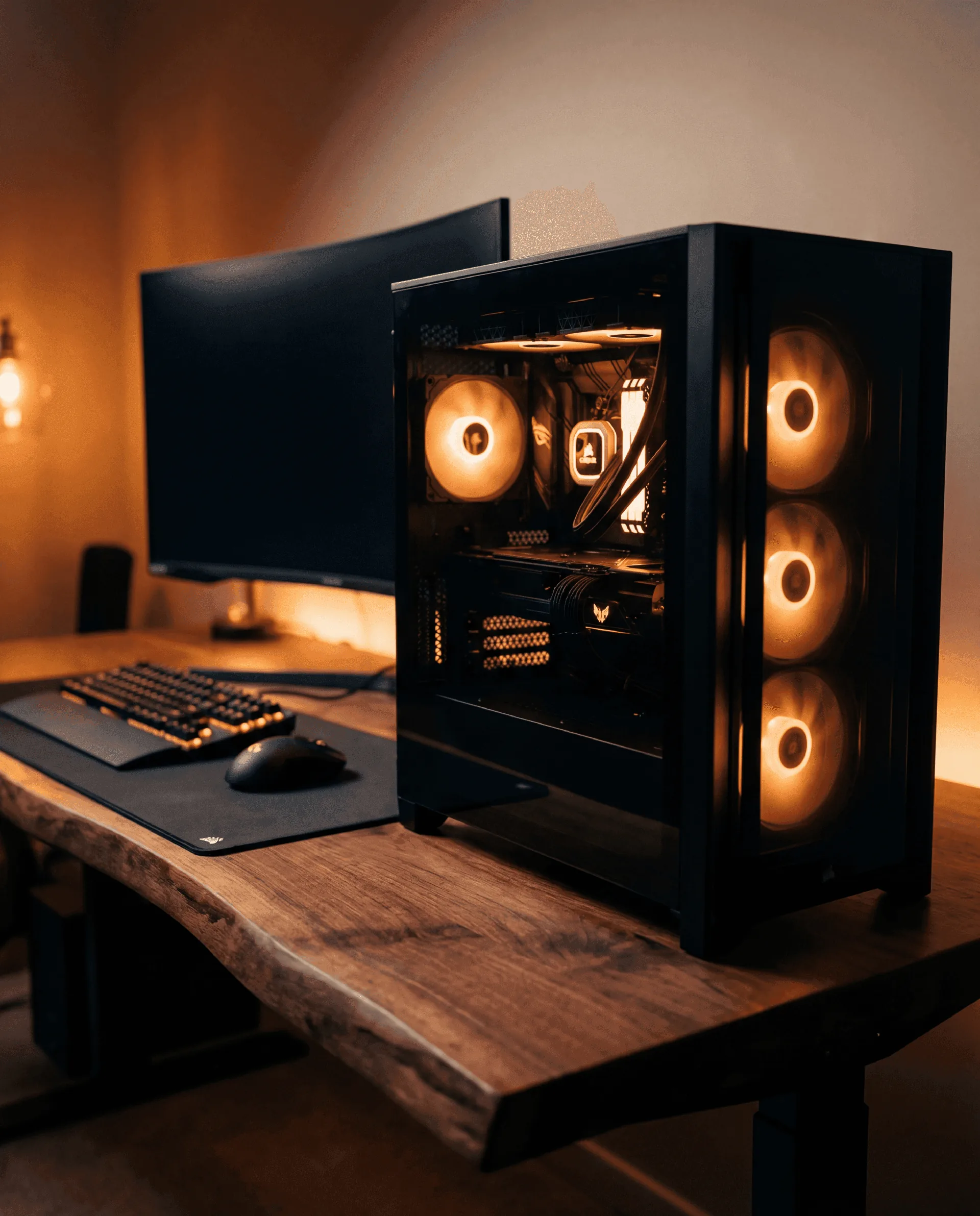
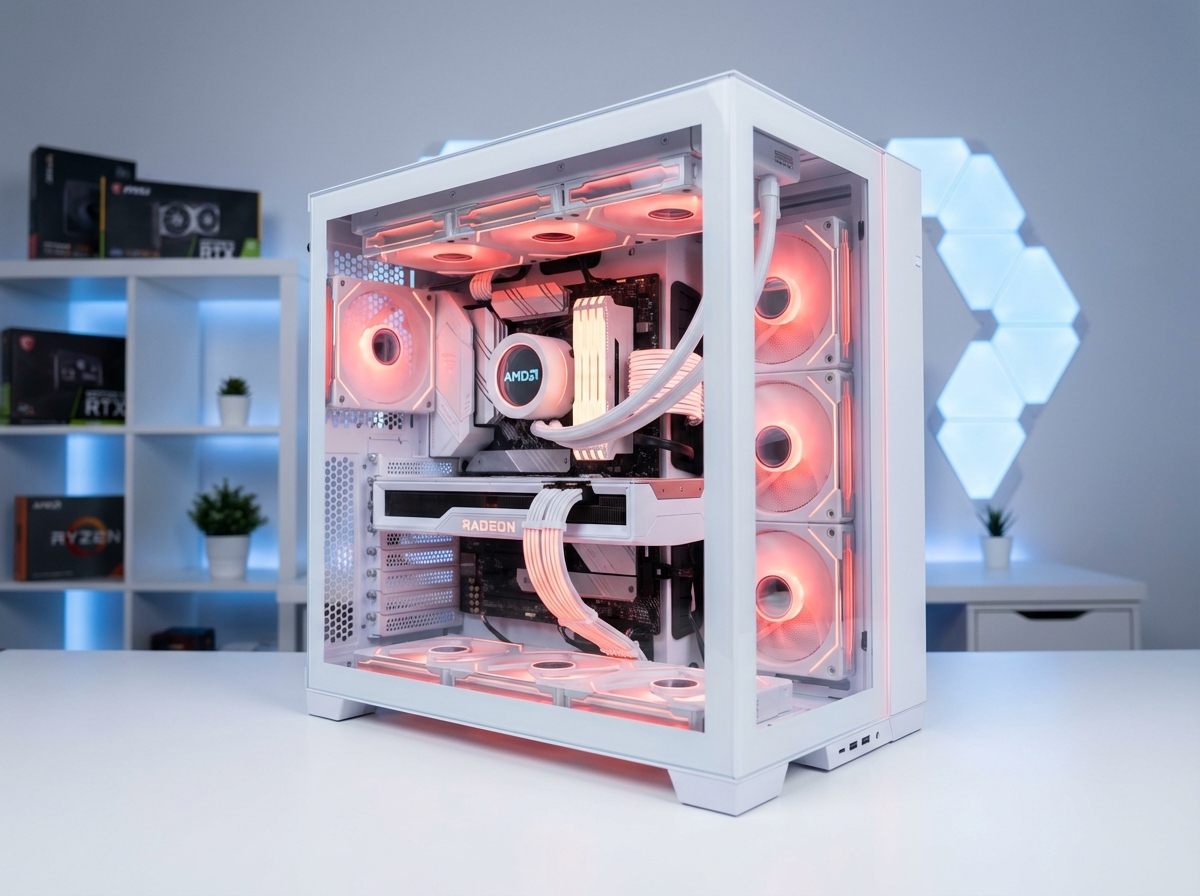
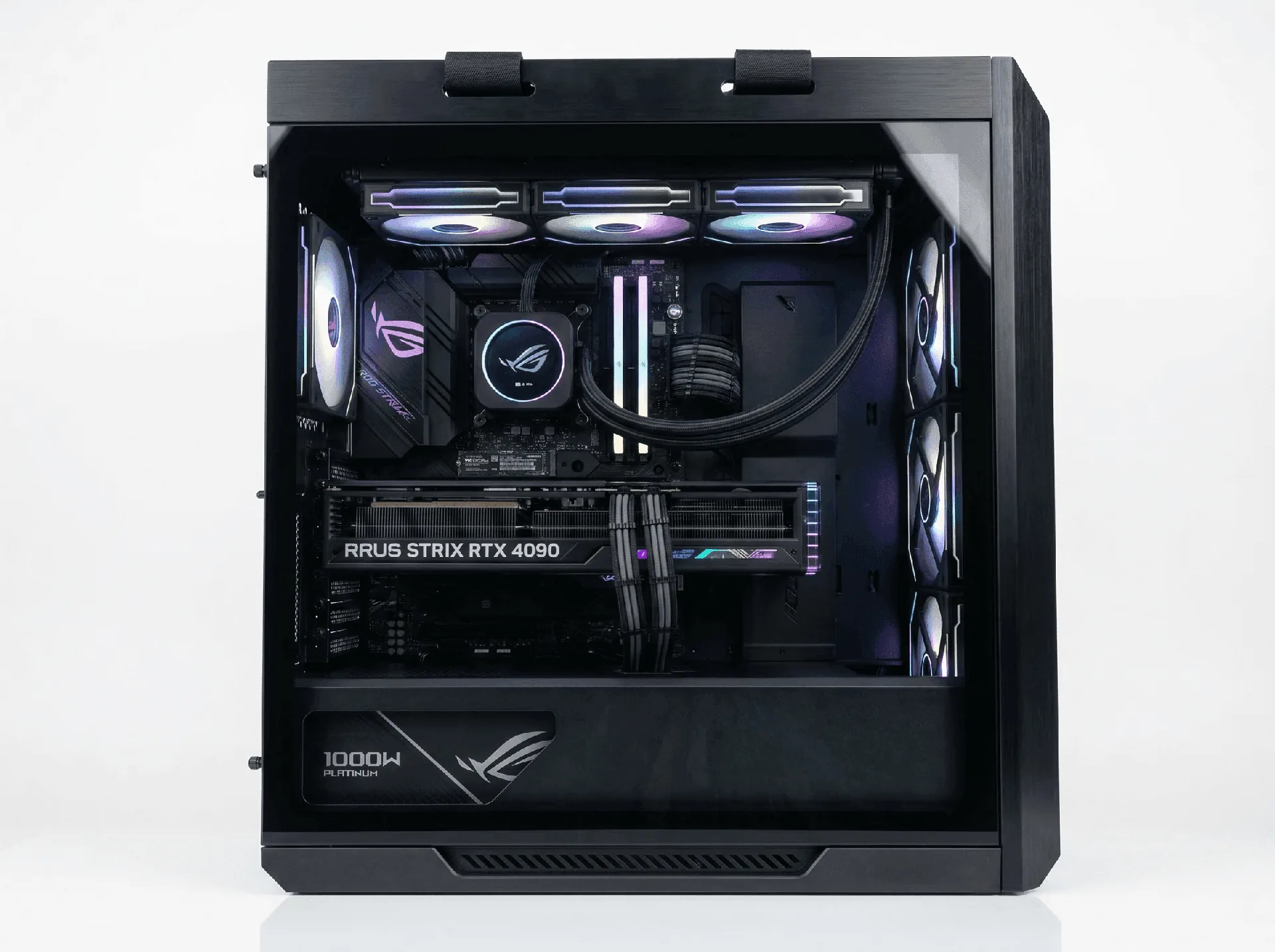
Fan curves, dust, airflow and a little GPU tuning. No exorcism required.
Happy Halloween, y'all. If the scariest sound in your house tonight is your gaming PC spinning up like a leaf blower the second you load into a match, this one's for you. A loud PC isn't just annoying. It drowns out footsteps in your headset, it's the first thing anyone else in the room complains about, and often it's telling you something is working harder than it needs to.
The good news: most noise problems are fixable for free, in about an hour, with no new parts. Here's the order we go in when a customer tells us their rig got loud, from the easy stuff to the parts worth upgrading.
STEP ONE: FIGURE OUT WHAT'S MAKING THE NOISE
“It's loud” can mean five different things, and each has a different fix. Listen while the PC idles at the desktop, then while it games:
| What You Hear | Likely Source |
|---|---|
| Steady whoosh that ramps up and down | Fans, often an aggressive fan curve |
| Loud only while gaming | GPU fans, sometimes the CPU cooler |
| High-pitched buzz or squeal under load | Coil whine (usually the graphics card) |
| Gurgling or a constant hum near the CPU | AIO liquid cooler pump |
| Rattle or grinding | A fan bearing or a cable touching a fan blade |
A quick trick: carefully stop one case fan at a time by pinching its center hub (never the blades) for a second or two. When the noise drops, you've found your culprit. Do this only at idle, and keep fingers and loose cables away from the blades.
FAN CURVES: THE BIGGEST FREE FIX
Most noise complaints come down to fan curves set too aggressively. A fan curve tells each fan how fast to spin at a given temperature. Many boards ship with curves that jump fans to high speed the moment the CPU briefly spikes, which is why some PCs “rev” when you just open a browser.
- Where to set them: in the BIOS (usually a section called Smart Fan, Q-Fan or Fan Control) or in your motherboard maker's software. Setting curves in the BIOS works even if you uninstall every app.
- Flatten the bottom: keep fans at a low, steady speed through normal desktop temperatures, then ramp gradually as things heat up under load.
- Add hysteresis or a delay if your board offers it, so fans don't chase every one-second temperature spike.
- Base case fans on the right sensor. Case fans tied only to CPU temperature will ramp when the CPU spikes, even if the GPU is what's heating the case.
Then check your work: run a game you play for 20–30 minutes and watch temperatures in your monitoring tool. If CPU and GPU temps stay within their normal ranges, you've got a quieter PC for free. If they climb too high, nudge the curve back up a bit.
DUST AND AIRFLOW: LET THE FANS WORK LESS
Fans get loud when they can't move enough air. Two things fight them: dust and bad airflow paths.
Clean it out
Power down, flip the PSU switch off and unplug the PC. Pull the front and bottom dust filters and rinse or brush them. Use short bursts of compressed air on heatsinks, radiator fins and the GPU cooler, and hold fans still while you blow them out so they don't overspin. Clogged filters are the most common reason we see a PC slowly get louder over a year.
Get the airflow direction right
The standard layout: front and bottom fans pull cool air in, rear and top fans push warm air out. Fans blow toward the side with the frame struts (and most have little arrows on the frame). A fan installed backward fights the others, and the whole system spins faster to compensate. Aim for a little more intake than exhaust so air comes in through the filters instead of every gap in the case.
Mind the placement
Give the case a few inches of breathing room from the wall, and don't trap it inside a closed desk cabinet. A PC sitting on carpet can choke its bottom intake. If the side panel faces you, the fans can sound louder than they are, so moving the tower to the other side of the desk sometimes helps more than you'd think.
GPU TUNING: POWER LIMITS AND UNDERVOLTING
Under load, the graphics card is usually the loudest part of a gaming PC, because it's the part using the most power. Less power means less heat, and less heat means slower fans.
- Cap your frame rate. If your monitor is 144Hz, rendering 300 fps is just making noise. Set a cap in the game or the GPU driver near your refresh rate. It's the safest, easiest tuning there is.
- Lower the power limit. Tools like AMD Software's tuning page or MSI Afterburner let you drop the power limit slider. A small reduction often costs only a little performance and noticeably cuts heat and noise.
- Undervolt (for the comfortable). Running the GPU at its normal clocks with a bit less voltage can lower temperatures further. Every card is different, so don't copy another person's numbers. Make small changes, test with the games you actually play, and go back to stock if you see crashes.
Tuning sits on top of the factory settings, and you can always reset to default. If a game starts crashing after you've tuned, reset first before blaming anything else.
COIL WHINE AND AIO PUMP NOISE
Coil whine
That high-pitched buzz under load comes from tiny vibrations in the inductors (coils) on a graphics card or power supply as current flows through them. It's common, it varies from one card to the next, even of the same model, and it isn't a sign the card is failing. It's often worst at very high frame rates, like an uncapped game menu running hundreds of frames per second. A frame rate cap and a slightly lower power limit are the two fixes that most often help.
AIO pump noise
A liquid cooler's pump should be a quiet, steady hum. Gurgling usually means an air bubble has worked its way into the pump. Air rises to the highest point in the loop, so you want that to be the radiator, not the pump. NZXT's mounting guide recommends keeping the radiator above the pump, such as a top mount or a front mount with the tubes at the bottom. If yours is mounted with the pump as the highest point, remounting it often fixes the noise. You can also set the pump to a steady speed in its software instead of letting it ramp up and down. Grinding or clicking that won't go away is different, and it's worth a warranty check.
WHEN IT'S WORTH UPGRADING PARTS
If you've done all of the above and it's still too loud, hardware is the next step:
- Bigger, slower fans. A larger fan moves the same air at lower RPM, and lower RPM is quieter. Swapping thin stock fans for good-quality 140mm fans, where your case supports them, makes a real difference.
- A better CPU cooler. A larger air tower or a properly sized AIO runs its fans slower for the same temperatures.
- A case built for the job. Mesh-front cases breathe easier, so fans can spin slower. Cases with sound-dampening panels block more noise but often run warmer. Pick based on whether your hardware runs hot.
- A GPU with a bigger cooler. Larger triple-fan coolers generally run quieter than compact designs at the same power.
BOTTOM LINE
Start free: find the noise, set sensible fan curves, clean the filters, check the airflow direction and cap your frame rate. That handles most “scary loud” PCs before you spend a dollar. If the GPU is still the loudest thing in the room, a modest power limit cut is the next step, and parts upgrades come last.
A quieter rig also tends to run cooler, which helps it hold its clocks. Our 120Hz optimization guide covers the thermal side in more depth.
WANT A RIG THAT KEEPS ITS COOL?
Every Lone Star build gets professional cable management and a 24-hour stress test before it ships. Tell us you want it quiet, and we'll help you pick the case, cooler and fans in the Custom Builder.
OPEN THE CUSTOM BUILDER READY TO SHIP